
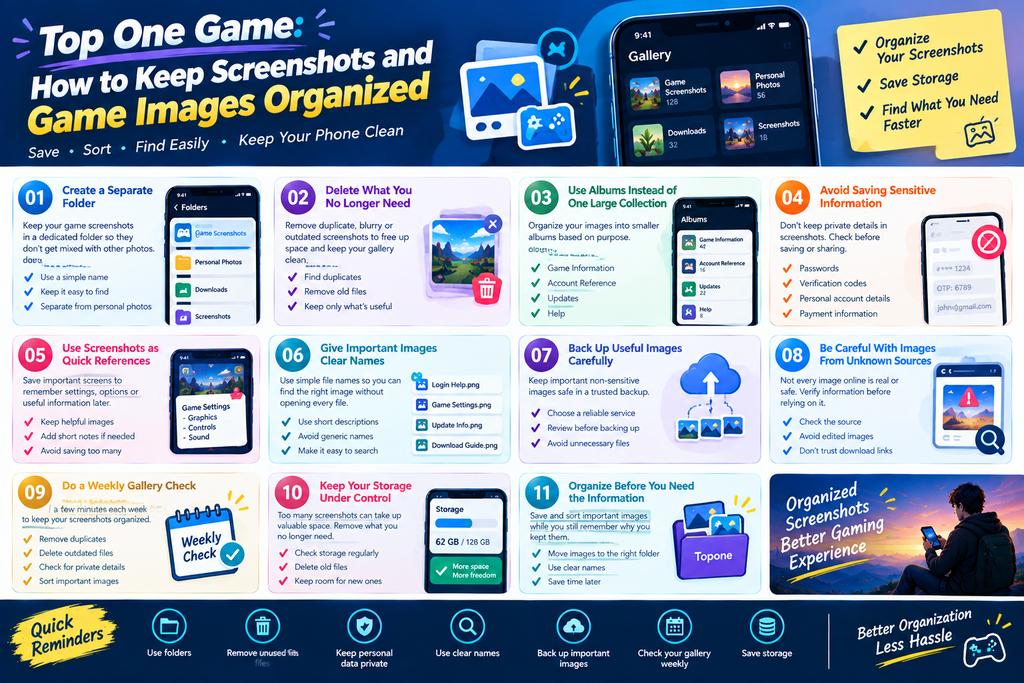
Screenshots can be useful when using a mobile game. You may save an important screen, keep a record of something you want to remember, or capture information before closing the app. But after taking many screenshots, your phone gallery can quickly become crowded.
Keeping these images organized makes them easier to find later. A simple folder system can save time and keep your phone cleaner.
The top one experience can become more convenient when useful screenshots are easy to locate instead of being mixed with hundreds of unrelated pictures.
Why Game Screenshots Can Pile Up
Taking one screenshot is simple. The problem usually starts when you keep saving images without sorting them.
After a few weeks, your gallery may contain:
- Game screenshots
- Personal photos
- Downloaded pictures
- Social media images
- Screenshots of websites
- Old reference images
- Duplicate files
Finding one specific image can then take much longer than expected.
A small organization habit can prevent this problem.
Create a Separate Folder
The easiest starting point is creating a dedicated folder for gaming-related screenshots.
You could use a simple name such as:
- Game Screenshots
- Topone Images
- Gaming Notes
- Game Reference
The exact name does not matter. What matters is that you can recognize it quickly.
When you save a new screenshot, move it into the appropriate folder instead of leaving everything in the main camera gallery.
Keep Personal Photos Separate
Your normal camera photos and gaming screenshots serve different purposes.
Keeping them separate makes your gallery easier to browse. You will not have to scroll through game images when looking for a family photo or a picture from a recent trip.
This small change can make everyday phone use more convenient.
Delete Screenshots You No Longer Need
Not every screenshot needs to stay on your phone permanently.
You might save an image because you need to check something later. Once you no longer need it, there is little reason to keep it forever.
Set aside a few minutes every couple of weeks to remove unnecessary screenshots.
Look for:
- Duplicate screenshots
- Accidentally captured screens
- Outdated information
- Blurry images
- Screenshots you already recorded elsewhere
Deleting these files can also free up some storage space.
Use Albums Instead of One Large Collection
If you take many screenshots, one large folder may eventually become difficult to manage.
You can create smaller albums based on purpose.
For example:
Game Information
Useful screens that you may want to review again.
Account Reference
Non-sensitive information that you need for your own reference.
Updates
Screenshots showing version or feature information.
Help
Useful instructions or support information.
This structure makes searching much faster.
Avoid Saving Sensitive Information
Screenshots can sometimes contain information that should remain private.
Before saving or sharing an image, check whether it shows:
- Passwords
- Verification codes
- Private messages
- Personal account details
- Payment information
- Email addresses
- Phone numbers
Do not share screenshots containing sensitive information with strangers.
If you no longer need such an image, delete it from your phone.
Check Before Sharing
It is easy to tap the share button without noticing everything visible in a screenshot.
Take a second look before sending an image to another person.
If the screenshot contains information that does not need to be shared, crop the image or avoid sending it.
Use Screenshots as Quick References
A screenshot can be useful when you want to remember where a particular option was located.
For example, you might capture an important screen and review it later instead of repeatedly searching through the app.
However, screenshots should support your memory, not replace basic organization.
If you save too many reference images, finding the right one becomes difficult again.
Give Important Images Clear Names
Some phones automatically assign dates or generic file names to screenshots.
If you have an image that you expect to use repeatedly, giving it a recognizable name can help.
Instead of keeping several files with similar names, you could use simple descriptions such as:
- Login Help
- Game Settings
- Update Information
- Download Notes
Use names that tell you what the image contains without needing to open every file.
Back Up Useful Images Carefully
If a screenshot contains information you genuinely need, consider keeping a backup.
Your phone could be lost, damaged, or reset. Important non-sensitive images may be easier to recover if they are backed up through a service you trust.
At the same time, do not automatically back up every screenshot.
Large numbers of unnecessary images can make your backup storage messy too.
Review your screenshots before creating a large backup collection.
Be Careful With Images From Unknown Sources
Not every image found online is useful or trustworthy.
If you see a screenshot claiming to show information about a topone game, check the information against a trusted source before relying on it.
A picture can be edited easily. An image that looks official does not automatically prove that the information is accurate.
This is especially important when a screenshot contains download instructions, account information, or claims about new features.
Make a Small Weekly Gallery Check
You do not need to organize your gallery every day.
A short weekly check can be enough.
Open your screenshot folder and ask:
- Which images are still useful?
- Which ones are duplicates?
- Which files contain outdated information?
- Are any private details visible?
- Which images should be moved or deleted?
Five minutes of maintenance can prevent hundreds of unwanted screenshots from building up.
Keep Your Storage Under Control
Images may not seem large individually, but hundreds of screenshots can eventually consume noticeable storage.
If your phone is already close to its storage limit, review screenshots along with videos and downloaded files.
You may find many old images that are no longer useful.
Removing them gives your device more room for files you actually need.
Organize Before You Need the Information
The best time to organize a screenshot is usually before you need it again.
If you save an important image today, place it in the correct folder while you still remember why you saved it.
That small habit is much easier than trying to understand hundreds of unnamed screenshots months later.
It can also make information related to the topone apk or top one game easier to locate when you need it.
Final Thoughts
A clean screenshot collection can make your phone easier to use. Separate useful images from ordinary photos, delete old screenshots, avoid saving sensitive information unnecessarily, and create simple folders for images you want to keep.
You do not need a complicated system. A few clear folders and a regular cleanup are enough for most people.
When your useful topone screenshots are organized, you spend less time searching through your gallery and more time getting the information you actually need. A simple five-minute cleanup can make a surprisingly big difference over time.