
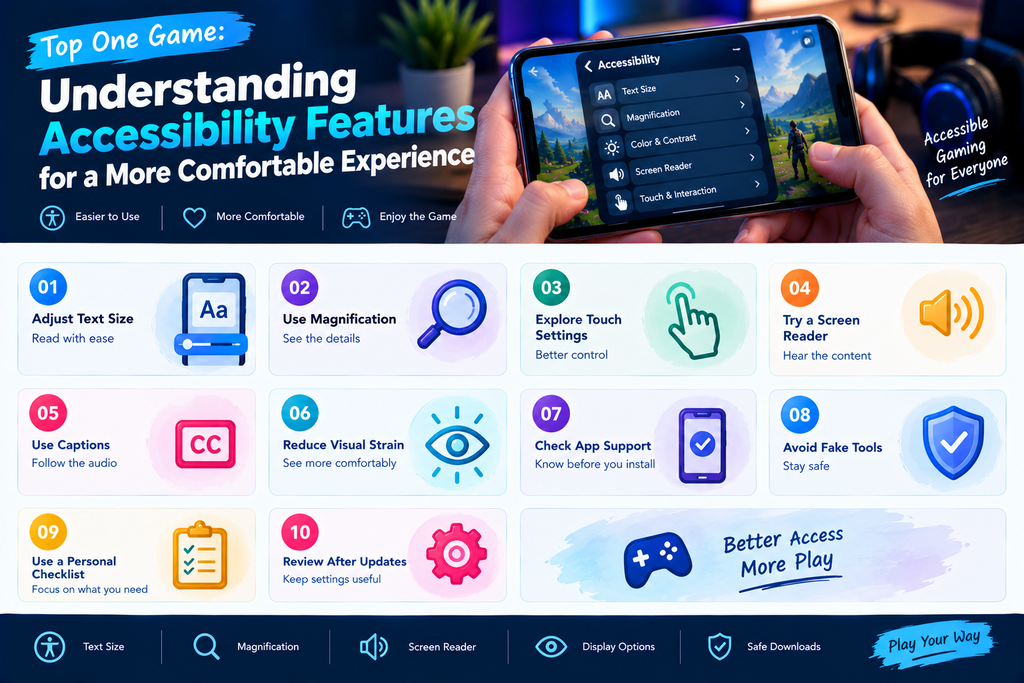
Mobile games are used by people with different needs and preferences. Some players find small text difficult to read, while others prefer larger controls or need more time to interact with a screen. Simple accessibility features can make a phone easier to use without changing the main purpose of an application.
When exploring the top one platform, it helps to understand which options come from your phone and which ones are available inside the app. These features can make everyday interactions more comfortable and help you adjust your device to suit your needs.
What Accessibility Means in Mobile Gaming
Accessibility is about making digital products easier for different people to use. It includes features that support reading, touch interaction, movement, and other ways of using a device.
Some options are built into Android or iOS, while others may be included in an individual application.
For example, a player may increase text size across the phone or use a screen reader to hear certain information. These changes can help with general phone use, although not every game will support every feature.
Make Small Text Easier to Read
Small text can make instructions, labels, and menus difficult to understand. You may need to look closely at the screen or repeatedly move your phone to read a line.
Your device may let you increase the font size through its display or accessibility settings.
Find a Comfortable Text Size
Open your phone settings and look for Font Size, Display Size, or a similar option. The exact name depends on your device.
Make a small adjustment and check whether the text becomes easier to read.
Remember that changing the system font size may not affect every part of a game. Some applications use fixed text sizes, so the result can vary.
Explore Magnification Options
Screen magnification can enlarge part of the display when you need to inspect a small detail.
This feature may be useful when reading a label or checking a section that is difficult to see at its normal size.
Depending on your phone, magnification may work through a shortcut, gesture, or accessibility button.
Try the feature in a safe place before using it during a game. Magnifying the screen can hide other information, so it may not be practical for every situation.
Understand Touch and Interaction Settings
Some people find it difficult to tap small areas accurately. Others may accidentally touch the screen while trying to reach a particular button.
Phone accessibility settings can offer tools that change how touch input is handled.
Possible options include touch-and-hold adjustments, interaction controls, and settings designed to reduce accidental input. Availability varies by device and operating system.
Test Changes Before Relying on Them
A touch setting that helps in one application may feel awkward in another.
Try any adjustment with ordinary phone controls first. Then open the topone game and see whether the interaction feels more comfortable.
If the change makes buttons harder to use, return to the previous setting.
Learn About Screen Readers
Screen readers describe certain elements on the screen through spoken feedback. They are designed to help people who are blind or have low vision use digital devices.
Android and Apple devices offer built-in screen-reading tools, though their names and controls differ.
Support within a game depends on how the application is designed. Some buttons may have clear spoken labels, while other elements may not be described properly.
If you rely on a screen reader, check whether the relevant app supports your needs before depending on it for every task.
Use Captions When Audio Information Matters
Some applications provide captions or text alternatives for spoken content. Captions can help people who are deaf or hard of hearing, and they can also be useful when sound is unavailable.
However, system-wide caption features do not automatically convert every game sound into text.
Check whether the application offers captions or written instructions for important information.
If no suitable option exists, look for a text-based help section or other accessible information from a trusted source.
Reduce Visual Discomfort
Bright screens, flashing effects, and busy animations can make some people uncomfortable.
Your phone may offer display options such as reduced brightness, color adjustments, or motion-related accessibility settings. Some applications also provide their own visual controls.
Adjust the Display to Suit Your Needs
Try lowering brightness when the room is dark and increasing text contrast if the screen is difficult to read.
If a game offers options to reduce animation or visual effects, check whether those settings improve your experience.
Not every application supports these changes, and a phone setting may not control effects inside every game.
Check Accessibility Before Installing an App
If you depend on a particular accessibility feature, investigate its support before installing an application.
Look for clear information about text readability, screen-reader support, control options, and any available accessibility guidance.
You can also consult official documentation or contact the developer when important details are missing.
A description that simply says an app is easy to use does not confirm that it supports every accessibility requirement.
Do Not Confuse Accessibility With Special Game Features
Accessibility tools help people interact with a device or application. They are not the same as cheats, modified files, or tools that claim to change how a game operates.
If a website offers a special APK and says it is required to unlock an accessibility option, examine the claim carefully.
For the top one game, rely on documented device settings and trustworthy application information rather than installing unknown software to change normal controls.
Build a Personal Accessibility Checklist
Different people need different adjustments, so a short checklist can help you remember what matters to you.
Before using a new application, consider these questions:
- Is the text comfortable to read?
- Can I identify important buttons?
- Do the touch controls work as expected?
- Can I understand important instructions?
- Are there visual effects I need to reduce?
- Does the application support the accessibility tools I rely on?
You do not need to change every setting. Focus on the features that address your own needs.
Review Your Settings After Device Changes
A new phone, operating system update, or reset may change where accessibility options are located.
If a familiar feature seems different, review your device settings and check the current instructions from its manufacturer.
Avoid assuming that every phone uses the same menus or gestures. The steps can vary between brands and software versions.
Final Thoughts
Accessibility features can make mobile technology easier to use by helping people read information, interact with controls, and adjust their screens to suit their needs. The right changes depend on the person and the application.
When using the top one platform, begin with the accessibility options already available on your phone. Check which features the app supports, test adjustments carefully, and avoid installing unfamiliar software to obtain basic accessibility tools.
A few thoughtful changes can make mobile gaming more comfortable and help you use your device in a way that works better for you.