
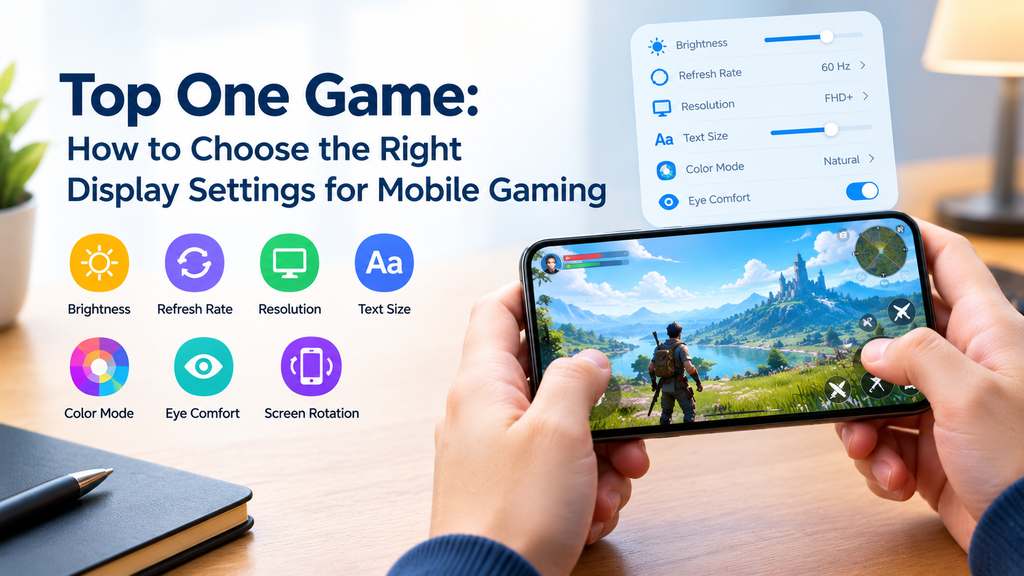
Your phone’s display affects how you see and use a mobile game. Text may look too small, colors may feel too bright, or the screen may be difficult to read under certain lighting conditions. Adjusting a few display options can make the top one game experience more comfortable without changing the game itself.
Every phone offers a different set of display controls. Some include refresh rate options, color modes, screen resolution, and brightness settings. Understanding what these options do can help you choose settings that suit your device and personal preferences.
Start With a Comfortable Screen Brightness
Brightness controls how much light your phone’s display produces. The right level depends on where you are using your device.
A screen that looks clear indoors may seem too dim outside. On the other hand, very high brightness can feel uncomfortable in a dark room.
Match Brightness to Your Surroundings
Adjust the brightness before opening the top one game. You should be able to read the screen without struggling or feeling the need to squint.
Try these simple approaches:
- Use moderate brightness in a normally lit room.
- Increase it when sunlight makes the screen difficult to see.
- Lower it when playing in a darker space.
- Try automatic brightness if your phone supports it.
Automatic brightness can be convenient, but it may not always choose the level you prefer. You can adjust it manually whenever needed.
Avoid Keeping Brightness at Maximum
Maximum brightness is not necessary in every situation. It can use more battery power and may make a screen feel harsh when the surroundings are dim.
Choose a level that makes the display clear without causing discomfort.
Understand Your Phone’s Refresh Rate
Refresh rate describes how many times the display can update each second. It is measured in hertz, often written as Hz.
A display with a higher refresh rate can make scrolling and supported animations appear smoother. However, the benefit depends on the phone, the game, and the available settings.
Check Which Options Your Phone Supports
Some phones offer standard and high-refresh-rate modes. Others automatically adjust the rate based on what is happening on the screen.
Open your phone’s display settings to see which options are available. The exact names and locations may differ between devices.
Balance Smoothness and Battery Life
A higher refresh rate may use more power than a lower one. If battery life matters more to you than extra smoothness, an automatic or standard option may be a better fit.
You do not need to choose the highest number simply because it is available. Test the options and use the one that provides the best balance for your needs.
Choose a Useful Screen Resolution
Screen resolution refers to the number of pixels used to display an image. In general, more pixels can help create finer visual detail, although the result also depends on screen size and display quality.
Some phones allow you to change resolution, while others keep it fixed.
Know When a Change Is Necessary
If your phone already displays text and images clearly, you may not need to change the resolution at all.
Changing this option without a clear reason can make the screen look different from what you prefer. On some devices, a lower resolution may reduce processing demands, but the effect varies.
For the top one game, begin with your phone’s normal display settings. Only experiment with resolution if your device provides the option and you understand what it changes.
Adjust Text Size for Easier Reading
Small text can make menus, instructions, and labels difficult to read. You do not have to accept the default size if your phone allows you to change it.
Find a Size That Feels Natural
Look for the text-size option in your device settings. Increase it slightly if you often lean closer to read information.
Make one small adjustment at a time. Very large text may cause some screens to display less information or arrange items differently.
Check Text Inside the Game
Changing system text size does not guarantee that every game’s text will change. Some apps use their own fixed text settings.
If the text remains small, check whether the game has a separate option. Avoid installing modified files just to change how text appears.
Understand Color Modes and Eye Comfort
Many phones provide color profiles or display modes. These options can make colors appear warmer, cooler, more vivid, or more natural.
The best choice depends on what you find comfortable.
Try Different Color Profiles
A vivid mode may make colors look stronger, while a natural mode may appear more balanced.
Switch between available profiles and look at the same screen. Choose the one that feels clear rather than assuming the most colorful option is always best.
Use Night or Eye-Comfort Features When Helpful
Some devices include a blue-light filter, night mode, or eye-comfort setting. These features often make the screen appear warmer.
They may feel more comfortable in the evening, but they do not remove every source of eye strain. Taking breaks and avoiding long periods of uninterrupted screen use remain important.
Understand Screen Rotation and Orientation
Screen orientation determines whether your phone displays content vertically or horizontally.
Some games work best in portrait mode, while others are designed for landscape viewing. The correct orientation depends on the app’s design.
Use the Mode the Game Supports
If a game opens in a particular orientation, it may be designed around that layout. Rotating the screen may not be possible or may not improve the experience.
Check the game’s available settings before changing your phone’s rotation controls.
Prevent Accidental Rotation
If your screen keeps turning when you move the phone, try enabling screen rotation lock.
This can help keep the display in one position when you are using the game. You can turn rotation back on whenever you need it for other apps.
Keep the Display Clean and Easy to See
Fingerprints, dust, and smudges can make a screen appear less clear. Cleaning the display is a simple step that does not require changing any software settings.
Use a soft microfiber cloth and follow the phone manufacturer’s cleaning advice. Avoid harsh chemicals that could damage the screen’s protective coating.
If you use a screen protector, check whether it is scratched, peeling, or affecting touch response. A damaged protector may need replacing.
Check Display Settings After a Phone Update
A phone software update may introduce new display options or change where existing controls appear.
If the screen looks different after an update, review your display settings before assuming something is wrong with the game.
When installing a top one game download or updating an app, remember that app settings and phone display settings serve different purposes. Changing one does not necessarily change the other.
A Simple Display Setup Checklist
Before your next session, check these points:
- Brightness suits the room.
- Text is easy to read.
- Refresh rate is set to a useful level.
- Color mode looks comfortable.
- Screen rotation works as expected.
- The display is clean.
- Eye-comfort features are available if needed.
You do not need to change every option. Keep the settings that work well and adjust only those that cause a problem.
Final Thoughts
A comfortable display can make the top one game experience easier on your eyes and simpler to use. Brightness, refresh rate, resolution, text size, color mode, and screen rotation all affect different parts of how your phone looks and feels.
Start with small changes and test each one before moving to another. Keep your display clear, use settings that suit your surroundings, and take regular breaks during longer sessions.
The right setup is not necessarily the one with the highest settings. It is the one that makes the game easy to see and comfortable to use on your particular phone.