
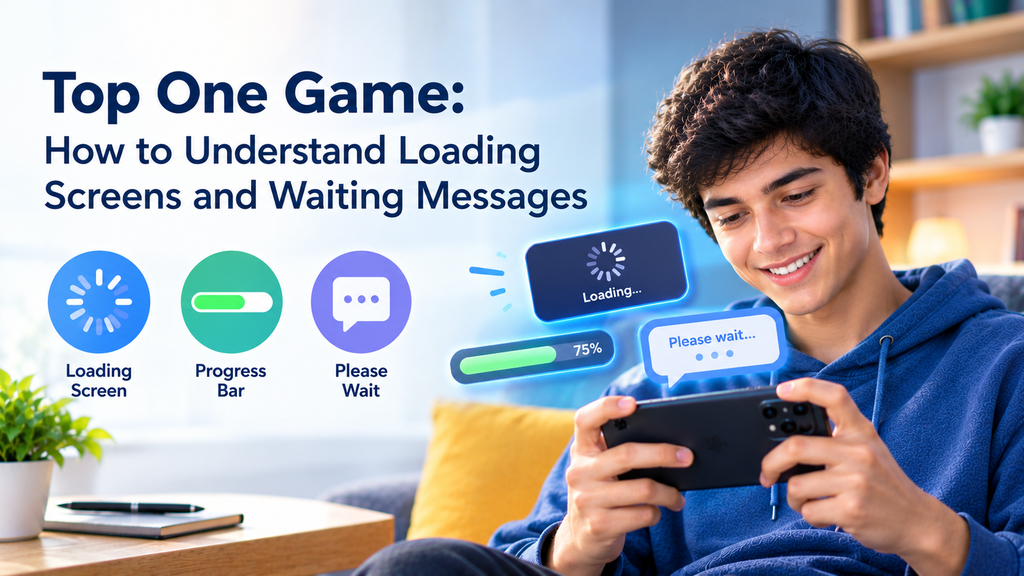
Mobile games sometimes take longer than expected to open a page, load a feature, or complete an action. A spinning circle, progress bar, or short message may appear while the app works in the background. These signs can look similar, but they do not always mean the same thing.
For users of Top One Game, understanding loading screens can make the experience less confusing. Instead of tapping buttons again and again or closing the app too quickly, it helps to know what the screen is telling you.
This guide explains common loading messages, what different screen behaviors may mean, and how to respond without risking your progress or account.
Why Does a Game Show a Loading Screen?
A loading screen appears when an app needs time to prepare information before showing the next page. The app may be opening saved data, preparing images, checking account details, or waiting for information from an online service.
The time required can change from one action to another. Opening a simple menu may take only a moment, while starting a new section may require more work.
What Happens Behind the Screen?
A game may need to complete several tasks before you can continue:
- Read information saved on your phone.
- Prepare images, buttons, and other screen elements.
- Confirm that your account session is still active.
- Request information from an online service.
- Finish a task started by your previous action.
A delay does not automatically mean something is wrong. The important thing is to notice whether the screen is still responding or appears stuck.
Common Loading Signs and Their Meanings
Different visual signs can provide useful clues. However, no single sign can explain every problem, because each app may use its own design.
Spinning Circles and Animated Icons
A moving circle or animated symbol usually indicates that a task is in progress. It may appear while a page opens or while the app waits for a response.
Give the screen a reasonable amount of time before taking another action. If the animation continues for much longer than usual, check whether other parts of the app respond.
Progress Bars and Percentages
A progress bar may show how much of a task has been completed. For example, a bar moving from the beginning toward the end can indicate that files or screen information are being prepared.
Still, progress indicators are not always exact measurements. Some apps pause at a certain percentage while completing another task. A bar that stops briefly is not enough to prove that the app has failed.
Messages Such as “Please Wait”
A waiting message often means the app needs more time before it can continue. Read the full message before pressing anything.
If it asks you to wait, avoid repeating the same action immediately. If it provides a clear next step, follow that instruction rather than guessing.
What to Do When a Loading Screen Takes Too Long
A slow screen can be frustrating, especially when you are unsure whether the app is still working. A calm, step-by-step approach is usually better than trying several fixes at once.
Step 1: Give the App Time
Wait briefly and watch for changes. Look for a moving animation, a changing message, or a progress bar that continues forward.
Do not repeatedly tap the same button. Multiple taps may send the same request more than once, depending on how the app handles the action.
Step 2: Check Whether the Screen Responds
Look for simple signs of activity. Does the back button work? Can you open a menu? Has the message changed?
If the entire screen remains unresponsive, the app may be stuck. If other controls still work, the delay may affect only one feature.
Step 3: Read Any New Message Carefully
A loading screen may change into an error message or request additional information. Read it before deciding what to do next.
For topone, the safest approach is to rely on the instructions shown by the actual app and its official support information. Do not assume that every loading problem has the same cause or solution.
Step 4: Close and Reopen Only When Needed
If the screen stays frozen and no useful action is available, closing and reopening the app may help. Before doing so, consider whether your current activity has been saved.
Some apps save progress automatically, while others may not save an unfinished action. Avoid clearing app data or removing the app as your first response to a delay.
How to Avoid Problems While a Game Is Loading
Good habits can prevent small delays from turning into larger problems. The goal is to let the app finish its work and avoid actions that could interrupt an important process.
Avoid Repeating Important Actions
Suppose you tap a button to submit a choice, update a profile, or confirm an action. The screen takes time to respond, so you tap it several more times.
This can create confusion if the app receives more than one request. Depending on the feature, it may repeat an action or display an unexpected result.
After tapping a button, wait for confirmation. If the result is unclear, check the current screen or available history before trying again.
Do Not Interrupt an Update
If the app clearly indicates that an update or installation is underway, avoid forcing it to close unless there is a strong reason to do so.
An interrupted process may need to restart. For Android users handling a topone apk, use a trusted source and follow the installation instructions provided for that specific file. Never install a random file simply because a loading screen is taking too long.
Keep Important Details in Mind
If a problem happens repeatedly, note a few basic details:
- Which screen was open?
- What action did you take?
- What message appeared?
- Did the screen respond to any controls?
- Did the same issue happen again after reopening the app?
These notes can make a support request clearer and help you avoid repeating steps that did not work.
Loading Problems That Need Extra Care
Not every delay should be handled by waiting. Some situations call for closer attention, particularly when account access or personal information is involved.
When the App Requests a Login Again
A login screen may appear after a session expires or the app needs to verify your account. Check that you are using the correct app and a trusted sign-in page.
Never share your password, verification code, or private account details with someone who claims they can fix a loading problem for you.
When a Payment or Confirmation Is Involved
If a loading screen appears after a payment-related or other important confirmation, do not immediately repeat the action. First, check the available transaction record or confirmation message, if one exists.
If the result remains unclear, contact the service through a verified support channel. Repeating an action without checking its status may cause unnecessary problems.
When the Same Screen Never Changes
A screen that remains unchanged through several attempts may indicate a temporary service issue, an app problem, or an incomplete process. It is not possible to identify the exact cause from the loading symbol alone.
Avoid unofficial repair tools, modified application files, and websites promising instant fixes. They may introduce security risks without solving the original issue.
Final Thoughts
Loading screens are a normal part of many mobile apps, but knowing how to respond makes a difference. Watch for changes, read the message, avoid repeated taps, and give important actions time to finish.
When using Top One Game, focus on what the screen actually shows instead of guessing what is happening behind it. If the app remains stuck, record the details and use trusted support information. A careful response can save time and help protect your account and progress.
Frequently Asked Questions
1. Why does Top One Game keep showing a loading screen?
Possible reasons include a delayed response, information that needs more time to load, or a temporary app or service problem. The screen alone may not reveal the exact cause.
2. Should I tap the loading button several times?
No. Repeated taps may submit the same request more than once. Wait for a response and check the screen before trying again.
3. Is a loading screen always a sign of an error?
No. Many loading screens are normal and disappear when the app finishes its task. A delay that continues without any change may need further attention.
4. Can I close the game while it is loading?
You can close an unresponsive app when necessary, but first consider whether an important action is still in progress. Unsaved activity may be lost.
5. What should I do if a loading problem keeps returning?
Record the screen, message, and action that caused the delay. Then check trusted support information and avoid unofficial downloads or tools that promise an instant solution.